How to Order &
Download Simply
Digital™
Downloads
from CottageArts.net
(Using
Windows
8, 7, Vista, XP - Mac OS/Leopard would follow similar instructions -
revised 08/05/14)
Simply
Digital
Downloads
are high quality designer art downloads offered at the Cottage Arts' online shop. Each download product description on our shop contains a description of the components in the kit, number of files included, and size of the zipped download file. The files within a download are zipped (compressed and with a .zip file extension) into one file so they can be easily downloaded. Once downloaded they need to be extracted for you to work with them within your image editor (Adobe Photoshop/Elements, Corel PaintShop Pro, etc.).
Below
are the
basic
steps
for
ordering,
downloading,
and
unzipping
the
files for Windows operating systems. We also show you how to come back and re-download files if you didn't download them immediately on the Order Confirmation Page (our downloads are available for download immediately right on the Order Confirmation Page but can be re-downloaded in the future at any time).
If you are using Windows 8, 7, or Vista, and Mac IOS versions you should already have a built in zip/unzip utility.
Note:
Our downloads are both Mac and Windows compatible, and Mac has different extraction utilities which function similarly to our instructions below.
Order Process
To start the order process,
click on
our Shop
link
on our website to
get to
our
online shop. Click on any Tab on the left side for the category of product
you are interested in. Note we have our downloads in different categories:
What's New, Simply $1, Commercial Use, Kits/Page Paks, Element Paks,
Brushes/Masks, Autumn/Nature, Photography Tools, AlphaSets, Templates,
Winter Holiday (or other seasonal categories), Calendars/Albums, and so
on.
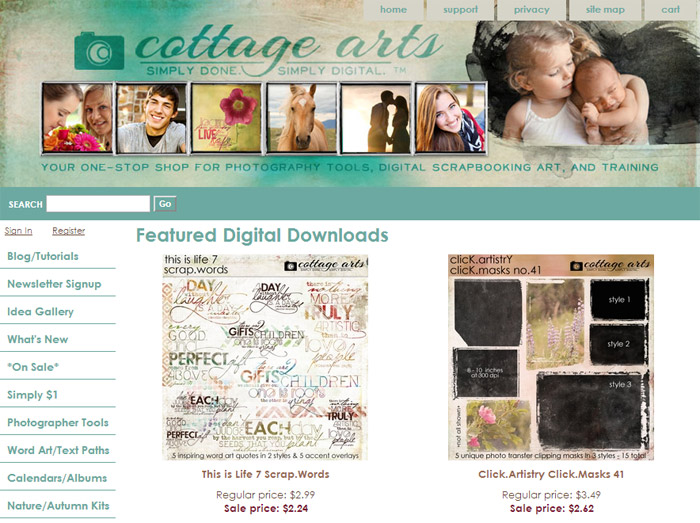
As shown above at the top blue bar is a Search function, which you can use to search for a specific product name or theme of product you are looking for. The site will then link you to any matches.
Our most used category is What's New, which lists all recent products, the most recent ones shown first. Click on What's New and you'll see thumbnails and prices of all recent products. Note also that we advertise sales on the top of this page and the On Sale page.
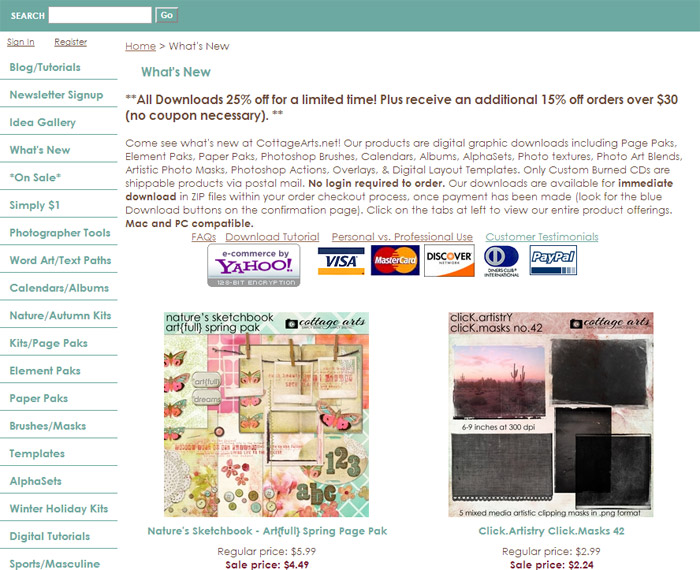
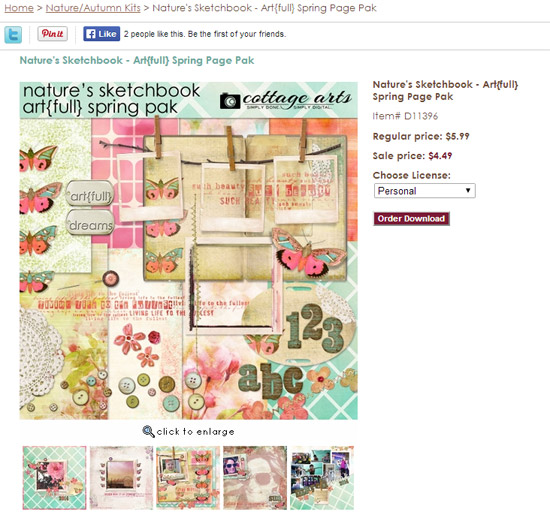
Once you see a product you like (Art{full} Spring Page Pak for example), click on the thumbnail to get to its product page.
Important
information,
such as
download
size and pak
contents
are
included
on this
page.
Click on
the
image to
see an
enlarged
view of
the
download
pak for a better idea of the detail of the art included, as well as see other views or layouts using the kit.
Choose
the
download
you wish
to
purchase
by
clicking
the Order Download button
below
the
price.
You can continue shopping and add as
many
download paks as desired for your order.
Checkout Process
When you
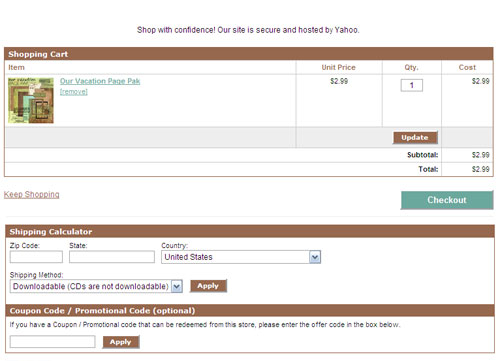
add a product to your cart (Our Vacation Page Pak in example below) or click View Cart button at top of store you are brought to the Shopping Cart page.
You can click Keep Shopping to add more items to cart. Or, you can start the checkout process.
Our site defaults to Downloadable shipping method as it is the only shipping method we offer.
At this page you can also enter any Coupon Code we may be offering at the time (free newsletter sign-up) or Gift Certificate you've been given. You can also add this code and set shipping method at next page.
Click
the
Checkout
button to proceed to next step.
 Customer Registration
(*Optional)
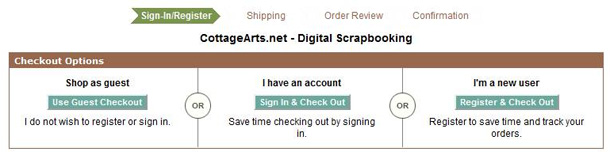
If you have not registered at our store (or are not currently logged in), you will be presented with three options. These include shopping as a guest (no registration is required), signing in via an existing account or registering for an new account.
Note: To keep track of order history, an account is needed.
If you click Use Guest Checkout, you will be presented with the Shipping & Payment screen (see next section on Shipping & Payment Methods).
Note:
Account history cannot be tracked, nor customer information remembered for next order when checking out as a guest.
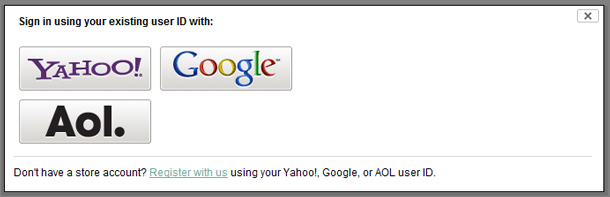
If you select Sign In & Check Out, you will be prompted to sign-in to the service you registered through previously. This will enable your order to be tracked in your account.
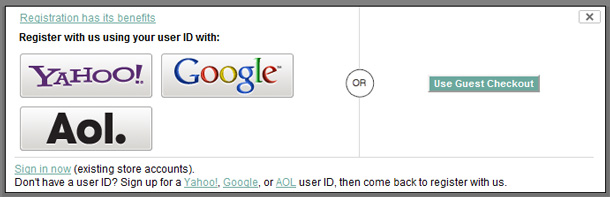
If you select Register & Check Out, you will be prompted to register with us using either your Yahoo, Google, or AOL accounts. If you do not have an account with any of these, you can create one using the links at the bottom of the window, and then return to register with us. Once you click one of the three options, the simple registration process will ask you login to the service you chose and link that account to CottageArts. You can then input your address information, click the register button, and you are done!
*As noted above, registration is optional.**
Payment Methods
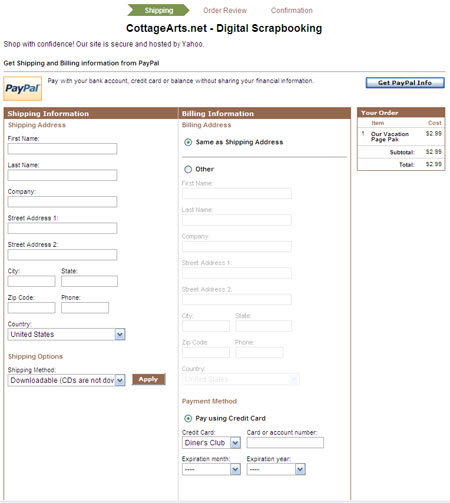
Complete the Shipping and Billing Address sections and Payment Method sections on this page. For Billing Address, click Same as Shipping Address button, if the same.
Choose Payment method by clicking on Pay Using Credit Card button or Pay Using PayPal button.
Note
that we accept PayPal, Visa, Discover, Mastercard, and Diner's Club payment options.
Scroll down to bottom of page and click Continue to pay with PayPal or go to next step.
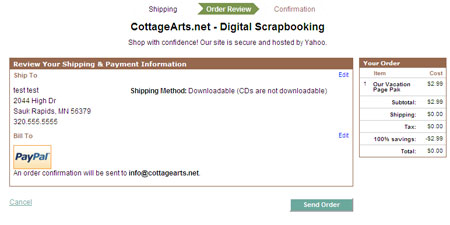
Review
your
final
order information,
and
click
Send Order,
if
everything
is
correct.
If you
choose
to use
PayPal as your payment method, the system will
ask for
your Paypal
Email
address
and
Password.
It will
then ask
you to
review
your
information.
Then
there
will be
a Review
Page from
CottageArts.
If correct, click
the
Send
Order
button.
Order Confirmation
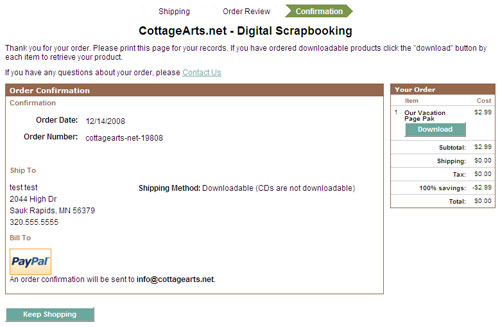
An order
confirmation
page
will
appear,
and next
to your
item(s) at top right,
you
should
see a
blue
Download
button.
Click on
the
Download button next to each item to download (download one at a time). Click Save button and choose path where to save downloads. We recommend creating a specific folder for your CottageArts.net downloads.
NO BLUE Download Button?
If the
Internet
connection
is
interrupted, or you exit your Order Confirmation page before completing your download(s), you can go back to download again at any time in the future.
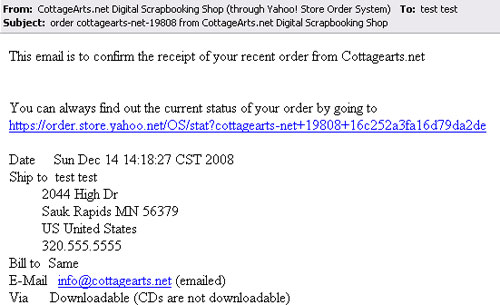
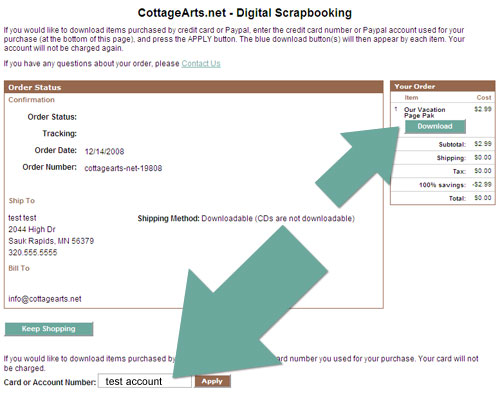
You can get to your Order Status page using the URL from your Order Confirmation email (your e-mail states, "You can always find out the current status of your order by going to: your order url). Check your spam if you did not receive this e-mail.
You can copy and paste this URL into your web browser if your e-mail made it a non-clickable link (at right you can see it is a blue clickable link...some e-mails make this non-clickable).
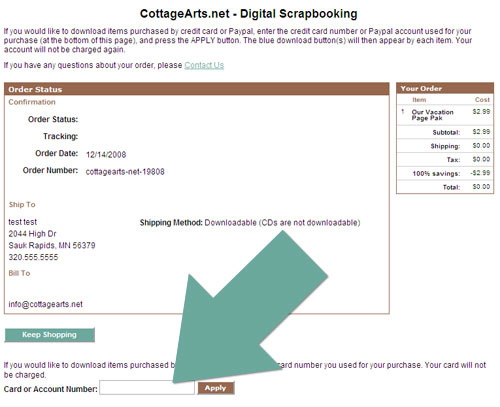
Yahoo Shopping is a highly secure system, so when you click the order status link, you need to do the following:
1. Verify who you are with your account number or PayPal e-mail address** in the field at the BOTTOM of the page
2. Click the Brown Apply button
3. See Blue Download buttons by items in order at top right of page
4. Click Blue Download buttons to download
** PayPal users: be sure to use your PayPal account e-mail address in this field which may be a different e-mail address than what you use now. Also, this field is case sensitive so enter your PayPal account exactly how you have it registered with PayPal.
Note: If paid by credit card, the field at the bottom will ask for account number, not your E-mail. You are not charged again, and Yahoo ECommerce is a SSL site.
Downloading Files
After clicking on the
blue "Download" button, a File Download dialog appears. Click Save.
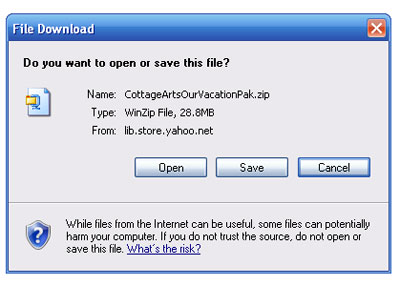
NO File Download dialog box?
This is most likely due to a pop-up blocker on your system not allowing pop-ups from our store. Please set your pop-up blocker to allow pop-ups from store.yahoo.net.
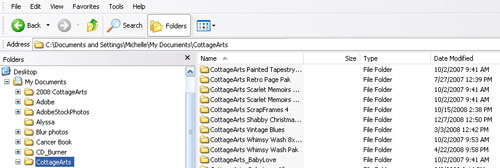
Now
locate
the
directory/folder
where
you save
all of
your
downloaded
files,
or make
a new
folder
called CottageArts or DigitalDownloads (or your choice)
under My
Documents
(for
Windows
users).
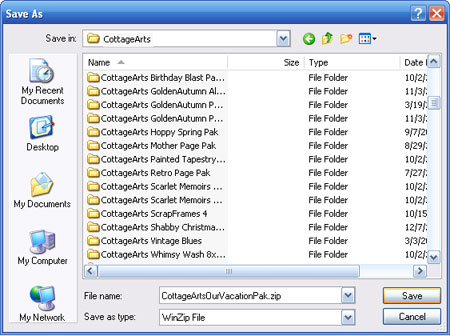
Click Save.
NOTE:
If the
Internet
connection
is
interrupted,
you may
return
to the
order
confirmation
page
(the
link in
your
order
confirmation
e-mail), validate who you are at the bottom of the screen, and then the blue Download button will re-appear for you to download again. You will NOT be charged again to re-download. (See NO BLUE Download Button(s)? section above for more details). We recommend you first delete the incomplete download file and re-boot your system before trying to re-download.
Extracting Zip Files (unzipping)
Now
locate
the zip
file
that you
just
saved. In this example, the file we downloaded was named CottageArtsOurVacation.zip.
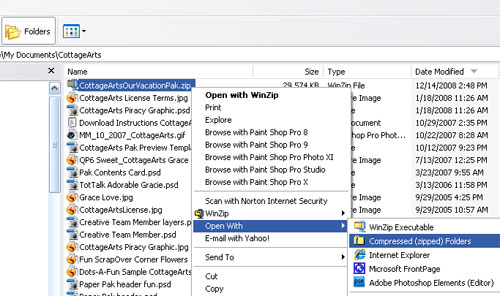
Right-click
on the
Zip file, choose Open With>Compressed (zipped) Folders. Or simply double click on the zip file name.
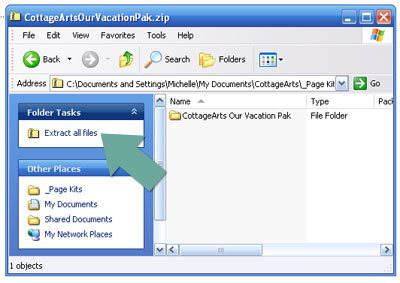
Click Extract all files in the window that opens.
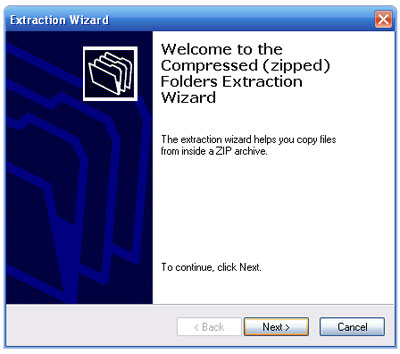
Click Next in Dialog, select folder to save to, click Next again. This will unzip the contents of the Zip file and place them in a new folder with the same name as the Zip.
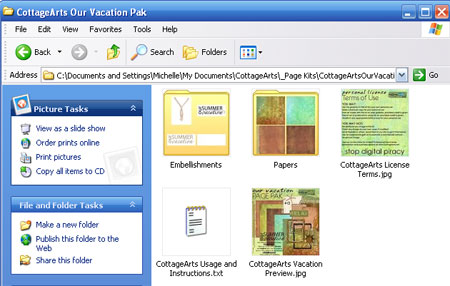
Double-click
on the
folder
titled CottageArtsOurVacationPak (or download pak you purchased, downloaded, and unzipped).
Click View>Thumbnails to see a thumbnail of the
images
in the
product
you
purchased. If there are multiple folder of product, such as Embellishments and Papers in kit at right, double click on desired folder.
To start creating, right click on any image and choose Open with Image Editor you use. Or open image editor, choose File>Open and find this folder.
Have fun using our products!
For more information on how to use our products, see our tutorials page or our inspirational team blog.
|